Keep the desk or work view dominant, show the current session state plainly and place the timer where it does not cover the task. A focus scene needs fewer interruptions than a conversation scene, even when both share your channel style.
In this guide
Decide what viewers are joining
Choose the format: a shared focus session, a quiet desk view or a guided work-and-break routine. State what people can expect without promising a productivity result. A short line such as “quiet focus session” explains the show more clearly than an unexplained countdown beside a decorative room.
Choose whether the actual work is visible or whether the scene represents a shared space. If the camera shows notebooks or a screen, remove private details before broadcasting. Use a clean demonstration document or a deliberate camera crop when the real task includes personal information. Do not depend on tiny text being unreadable.
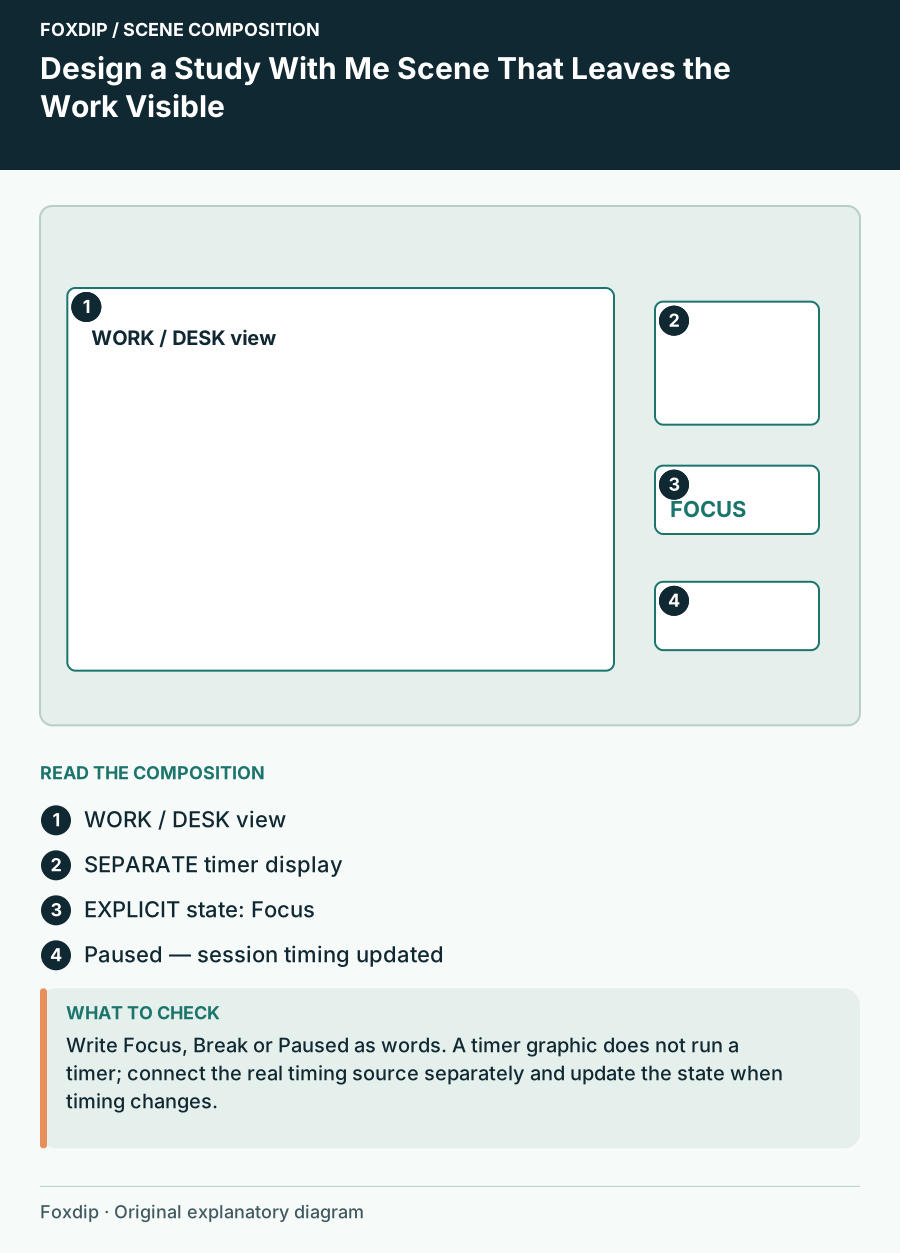
Original Foxdip scene plan. Positions illustrate this example; check the actual game or camera view.
Protect the work region
Place the desk camera or demonstrated work in the largest region. Reserve a narrow band or side area for the timer and state label. Avoid putting the countdown over the page where hands, writing or the cursor move. The timer supports the session; it should not become a permanent obstruction.
Use a stable background behind the status. “Focus” and “Break” should be written explicitly rather than communicated only by a colour change. You can use the same restrained palette for both states, changing the word and the relevant time information. Keep decorative motion farther from the work area.
| Element | Focus state | Break state |
|---|---|---|
| Primary view | Work remains visible | Calmer alternate view if wanted |
| State label | Focus | Break |
| Time information | Current interval remaining | Return time or break remaining |
| Chat emphasis | Quiet or reduced | More room for conversation |
Choose a timer you can operate honestly
Use a real timer or a manually maintained time message that matches your routine. A timer-shaped illustration is not a functioning timer. If you need to pause, explain the state visibly instead of letting the display continue to imply a schedule that no longer applies.
OBS can display separate text sources, but a basic text label does not by itself create countdown logic. Keep that distinction clear when selecting graphics or widgets. Confirm what a timer product actually does, how it resets and what happens when you change scenes. Do not promise automatic scheduling from a static screen.
Keep the focus and break transitions predictable
Prepare the break state in advance and rehearse the change with the actual timer. The work view can remain, or you can move to a quieter room image with a clear return message. Either way, the viewer should understand whether the session is continuing, paused or finished.
Keep alerts modest and away from the main task. Consider whether visible event animation belongs during focus periods or can wait for a break. This is a programme choice, not a claim that one approach improves concentration for everyone. Choose the amount of activity that matches the experience you told viewers to expect.
Review one full focus-to-break cycle
Record a shortened rehearsal that includes the start, a pause, the break and the return. Check that the state wording and time agree at every change. Watch a small-player version to see whether the work and current interval are understandable without zooming.
Save the timer controls, display region and fallback wording in your scene notes. If a timer fails, you should still be able to show an honest session state. When choosing study-themed graphics, look for quiet space and editable status text; decorative stationery is optional, but an understandable work area is central.
Sources & references
Foxdip editorial design advice with platform behavior grounded in the linked official documentation. Layout dimensions and palettes are worked examples, not platform requirements.
- OBS: Text Sources ↗Checked 2026-10-27
Spotted something out of date? Let Alex know.
How we put our guides together ↗