Keep the everyday scene as your base and add a small Halloween event layer: one prop, a short event label and a controlled accent. That gives the night a distinct identity without changing the whole channel vocabulary.
In this guide
Choose the evening’s actual premise
A haunted puzzle night, a costume conversation and a cozy pumpkin-building session need different visual energy. Write the event in one sentence before choosing art. A warm lantern and paper-cut bat may suit the cozy session; a high-contrast warning card may suit a horror challenge.
Keep the event name short enough to display beside your regular channel identity. “Pumpkin build night” is more useful than an elaborate subtitle nobody can read in the player. The theme should help viewers understand this session, not make your usual camera and game layout difficult to recognise.
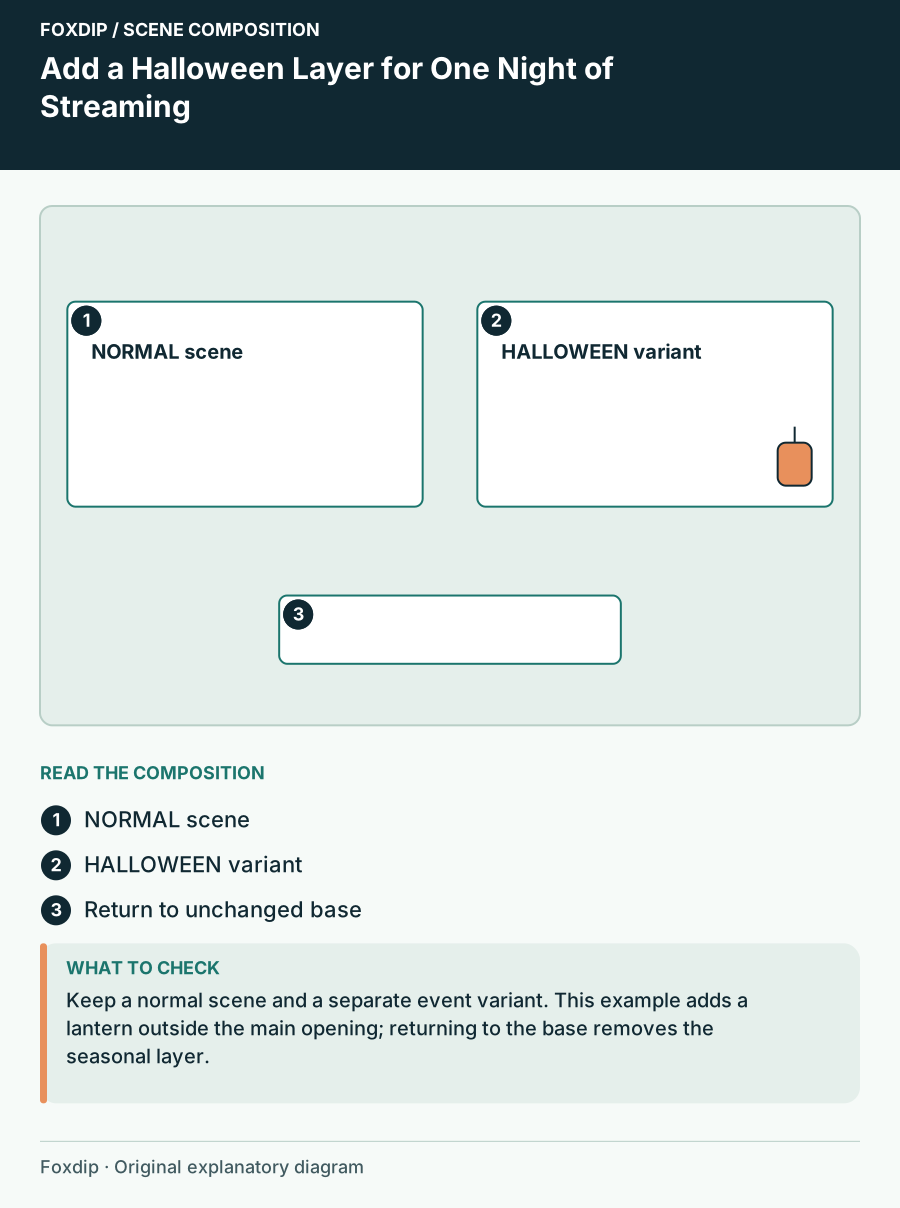
Original Foxdip scene plan. Positions illustrate this example; check the actual game or camera view.
Choose one prop and one accent
Place a single large seasonal prop outside the main content opening: a lantern beside the camera, a branch at the outer edge or a small moon behind the title. Repeat its colour in one label. Avoid surrounding all four sides with pumpkins, webs, bats and moving fog at equal intensity.
Keep the rest of the palette close to your normal channel. For a dark-blue base, a muted orange label and warm cream wording can suggest Halloween without replacing every colour. Test the actual pairing rather than assuming orange is automatically legible on any dark illustration.
Build a separate event variant
Duplicate your working layout or otherwise preserve an untouched base before adding the seasonal sources. Name the event scene and its additions clearly. In OBS, source visibility and stacking let you place extra art without rebuilding the underlying capture; be mindful that editing a shared source can affect other scenes.
Keep the event title separate from the prop artwork. You can then correct a date or change the challenge without modifying the whole illustration. Record where the added files live so the event variant remains understandable when you return to it next year.
Reserve the scare instead of looping it forever
If the show includes a visual scare or special alert, give it a specific region and purpose. Persistent fog over gameplay can hide details even when it looks subtle in a waiting-screen preview. A dramatic full-screen transition is different from a continuous overlay, so rehearse when each appears.
Consider a calmer fallback scene for conversation or a long break. The viewer should be able to follow your face, captions and instructions without navigating permanent effects. You can keep the same lantern or title card as a link to the event theme.
Run a short dress rehearsal
Use this sequence before the event. You are checking the programme with the theme active, rather than approving an empty decorated screenshot.
Show the real content
Open a bright game moment, a dark moment and a menu with text.
Look for: Essential information remains visible in all three.
Trigger the event element
Run the seasonal alert or transition using a test method supported by your setup.
Look for: It appears in the reserved region and ends cleanly.
Return to the base
Switch back to the ordinary scene or hide the seasonal additions.
Look for: The normal show is ready without missing labels or frames.
Close the event and archive the layer
After the themed stream, restore the everyday scene and any temporary event copy on the channel page. Keep the seasonal files and layout note together in an archive. Avoid leaving an expired date visible simply because the illustration still looks appealing.
If selecting a Halloween bundle, confirm the actual scene files, fixed text and included emotes. You may need only a small portion of a larger set. Use real product previews for the buying decision; the composition plan here is about where seasonal elements belong, not a claim about the contents of a current listing.
Sources & references
Foxdip editorial design advice with platform behavior grounded in the linked official documentation. Layout dimensions and palettes are worked examples, not platform requirements.
- OBS: Sources Guide ↗Checked 2026-10-27
Spotted something out of date? Let Alex know.
How we put our guides together ↗