
Map the information your actual game shows during play, then fit the camera and alerts around that map. Keep a separate scene variant when another game moves the minimap, roster, subtitles or objective display.
In this guide
Map more than the idle screen
Take reference frames from active play, the scoreboard, the buy or equipment menu and any spectator state you use. Identify the information a viewer needs to understand the match: health, ammunition, team status, round state, minimap and objectives. Their locations vary by game and sometimes by settings.
Use your own reference captures or draw neutral rectangles on a blank canvas. The goal is a combined map of occupied regions, not a screenshot of one quiet moment. A corner that looks empty before a round may hold a crucial player list later. Avoid treating any generic overlay template as an official safe zone.
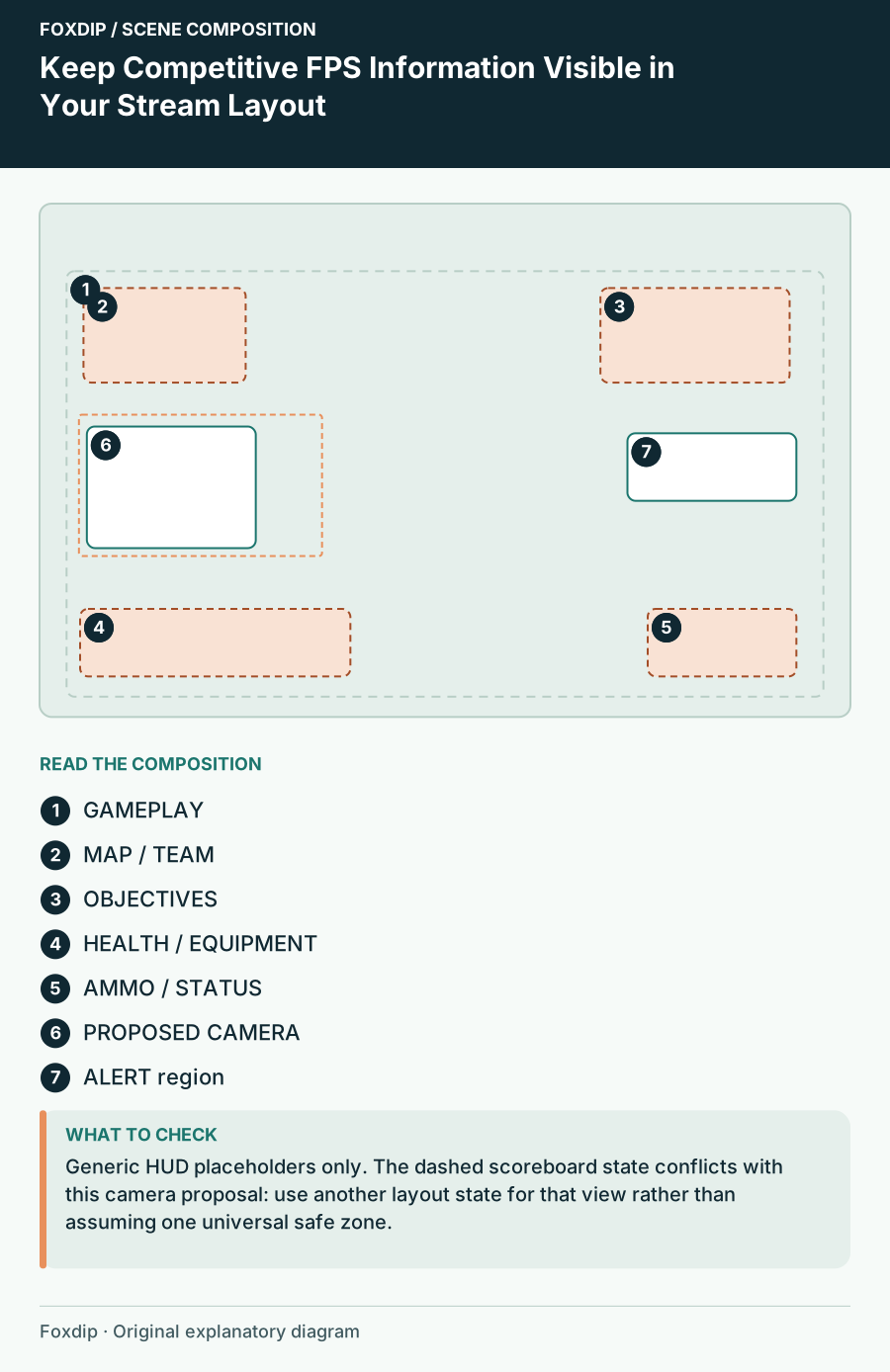
Original Foxdip scene plan. Positions illustrate this example; check the actual game or camera view.
Choose the camera after the information map
Look for a region that stays clear across the states you recorded. Place a modest camera block there and include the border, shadow and nameplate in its footprint. If no region works consistently, reduce the camera or use a scene variant rather than covering information the viewer needs.
OBS’s game-layout tutorial recommends positioning a webcam away from important game information. For competitive content, apply that principle to the scoreboard and spectator view too. You can preserve the same camera style while moving or hiding its block for a particular state; a consistent brand does not require one fixed corner.
Reserve an alert region that does not cross the action
Put event notifications in a predictable peripheral area and compare their maximum size with the HUD map. Test a long invented name as well as a short one. A quiet-looking alert design may expand considerably when its label wraps, so reserve the full occupied region rather than only the animation’s centre.
Consider whether an alert belongs on the gameplay scene at all during a high-attention moment. You might use a quieter visual acknowledgement and respond between rounds. Choose a workflow you can manage reliably; the purpose of this layout is to keep the match understandable while still allowing you to recognise viewers.
| Region | Check during | Common conflict to avoid |
|---|---|---|
| Team status | Active round and spectating | Camera or recent-event list |
| Scoreboard | Score display open | Large alert text |
| Objectives | Round transitions | Fixed social banner |
| Lower information | Equipment and subtitles | Camera nameplate |
Make labels secondary to the game
Use restrained text and a small stable panel for information you actually need on screen. A permanently moving recent-events list can compete with movement in the game, especially if it sits close to an aiming area. Keep animated decoration away from regions where viewers track targets or read small indicators.
Do not tint the entire game to match the overlay palette. Apply the channel style to the surrounding graphics, preserving the original game information. A narrow accent line or simple camera edge can connect the scene to your waiting screen without turning the HUD into another brand element.
Approve the layout through a short match sample
Record a sequence that includes a fight, a menu, a score check and an alert. Watch it in a smaller player and verify that the match state remains understandable. If a clash occurs, move the overlay first rather than assuming the game’s interface should be cropped away.
Save the map and scene name with the game and relevant display settings. Recheck it after a game update changes the interface or after you change aspect ratio. When buying FPS-oriented graphics, compare their real footprint with this map; the label competitive does not establish compatibility with your particular HUD.
Want graphics that already fit? Browse animated overlays ↗
Sources & references
Foxdip editorial design advice with platform behavior grounded in the linked official documentation. Layout dimensions and palettes are worked examples, not platform requirements.
- OBS: Stream Layout Tutorial 1: Game Screen ↗Checked 2026-10-27
Spotted something out of date? Let Alex know.
How we put our guides together ↗