
Steam's 'Failed to Start Game (Missing Executable)' error means a required game file is missing or another program is blocking it, according to Steam Support. Start with any security alert, then let Steam check the installation. You don't need a replacement executable from a download site. Keep the exact error and the game's name so you can tell whether each step changes the launch failure.
- Platform
- Windows PC · macOS
- App / launcher
- Steam
- Scope
- Match the controls in your current desktop client.
In this guide
Check that this is the launch error you're seeing
This guide is for a game that you try to launch and Steam says its executable is missing. If the game appears uninstalled even though its folder is still on the drive, Steam has a separate recognition procedure: check the existing library location and begin installation there so Steam can discover the files. Don't assume those two symptoms have the same fix.
Likewise, if the download is still failing with a disk write or server message, resolve that installation problem first. Verification is useful for installed game files; it can't make an unreachable download server reachable.
Review security alerts before restoring anything
Open your antivirus software and look for a detection or quarantine entry matching the game and the time of the failed launch. Steam documents quarantine as one possible reason a required file disappears. Read the reported file path and detection rather than assuming every alert is harmless.
Steam's security guidance says to contact the antivirus provider if you're unsure whether a detection is a false positive. It also explains how to report the application from its Steam store page. Keep the protection enabled while you investigate. Only consider a game-specific exception once the detection has been confirmed as a false positive, using your security provider's own instructions.
If the software keeps removing the same file, repeating verification alone won't address the block. Save the detection name and file path for the security provider and Steam Support. Don't download a substitute executable or restore an untrusted file just to get past the message.
Check for a matching detection
Review your security software's recent detections and quarantined items. Look for the affected game's files. If a detection is uncertain, contact that provider before restoring it or making an exception.
Look for: You either identify a recorded block that needs review or find no matching detection.
Once any confirmed block is resolved, or if no block is recorded, verify the game through Steam.
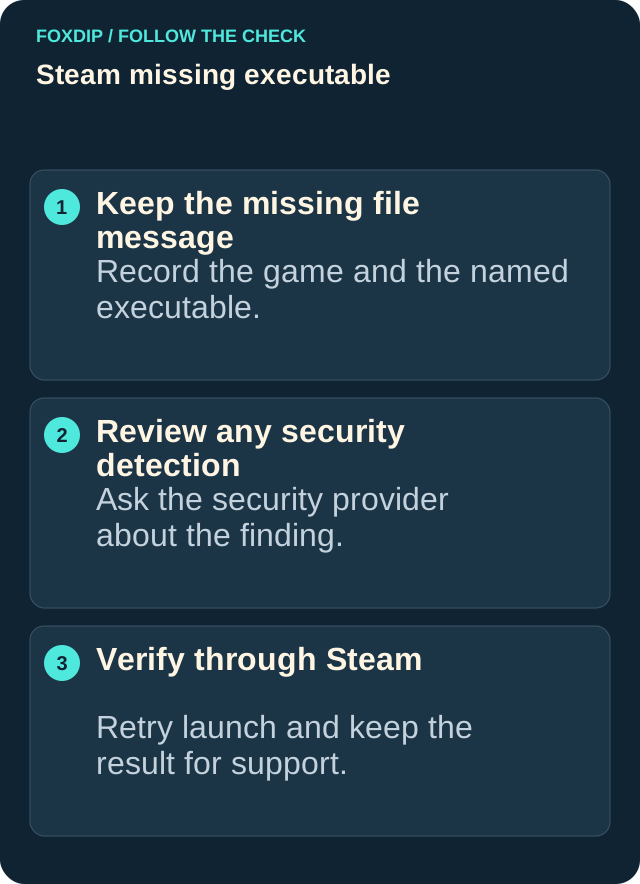
Illustration: follow the branch that matches what you see; menu paths are explained in the steps below.
Image: Foxdip · original explanatory illustration
Open full-size image : Keep the missing file message: Record the game and the named executable.. Review any security detection: Ask the security provider about the finding.. Verify through Steam: Retry launch and keep the result for support. (opens in a new tab)Have Steam check and repair the installation
Steam recommends restarting your computer and verifying the game when a failed download or damaged file could be responsible. Before you start, close the game and back up custom game files you need to keep. If you use mods, check their own restoration instructions; don't assume a file check is a backup of modified content.
Run one verification at a time. Steam specifically advises against doing it alongside intensive operations such as a virus scan or disk defragmentation. The check can take several minutes, and any required download needs to finish before you retry launching.
Restart and verify this game
Restart the computer and open Steam. In Library, right-click the game or use the gear on its Library page. Choose Properties, open Installed Files, and select Verify integrity of game files.
Look for: Steam checks the installed content and repairs missing or damaged game files when needed.
Wait for verification and any download to finish, then launch once from Steam. If the same error returns, collect the support details below.
Understand the verification result
Steam says that a small verification failure message can refer to local configuration files that intentionally aren't replaced. The practical check is whether the game now launches. Don't keep repeating verification solely because it reports that one or more configuration files could not be verified.
If the game launches, you're done. If its executable becomes missing again and a new antivirus alert appears, return to the detection review with that evidence. If no alert appears and the same launch error remains, ask Steam Support to investigate the installation.
Send Steam Support a useful report
Steam's missing-executable article asks for an uncropped screenshot of the error and a System Report. Follow its linked System Reports instructions for your operating system. Add the game's name, what verification reported, and whether a security tool recorded a detection.
The article also asks about interfering applications you've removed. Report only actions you've actually taken; don't uninstall unrelated software to fill that field. Keep the support conversation focused on what changed, what didn't, and the exact message you can still reproduce.
Sources & references
Based on the official support references below. Choose the steps that match your message, operating system and current app controls.
- Steam Support — Failed to Start Game (Missing Executable) ↗Checked 2026-10-23
- Steam Support — Antivirus software reports Steam games are malicious ↗Checked 2026-10-23
- Steam Support — Verify Integrity of Game Files ↗Checked 2026-10-23
- Steam Support — Installed games are appearing as uninstalled ↗Checked 2026-10-23
- Steam Support — System Reports ↗Checked 2026-10-23
Spotted something out of date? Let Alex know.
How we put our guides together ↗