
If a Steam download fails with a content server connection message, focus on download access before repairing game files. Start with service availability, then test the selected region and your local connection. Steam also documents a related error, 'No Steam content servers are currently configured to deliver content for this game', with a specific region-change procedure. The wording matters, so record the exact message instead of treating every failed download as the same error.
- Platform
- Windows PC · macOS
- App / launcher
- Steam
- Scope
- Match the controls in your current desktop client.
In this guide
Check the scope of the failure
Note whether this affects one game, several downloads, or Steam's websites as well. You can use another pending game update as a comparison without removing the affected game. A browser loading ordinary websites doesn't, by itself, establish that Steam's download connection is working.
Steam's network troubleshooting begins with a service-status check and points to its official Steam statistics page. Open the status resource linked from that support article. If Steam sites are timing out too, avoid assuming your library is damaged. A system-wide service problem needs to be resolved at Steam's end; changing local files won't resolve it.
If you can't establish that there's a wider issue, continue with the reversible checks below. Keep a short note of the time and outcome so a later support request can distinguish an intermittent failure from a consistent one.
Try the closest download region, then a nearby alternative
Steam distributes game content through regional servers. Its slow-download guidance recommends checking the current region and trying nearby alternatives. For the separate 'No Steam content servers are currently configured' message, Steam explicitly recommends the closest region, followed by the next closest if necessary.
Treat a region change as a test. If a nearby region works, let the download continue. There's no reason to cycle through distant regions once you've restored a working connection. If it doesn't help, record which region failed and move on.
Change the download region
In the signed-in Steam client, open Steam > Settings > Downloads. Set Download region to your region or the closest available location. Retry the affected download. If that region was already selected, try the next closest and retry.
Look for: Steam attempts to download through the selected region's content servers.
If both nearby choices fail, test the connection rather than repeatedly changing the same setting.
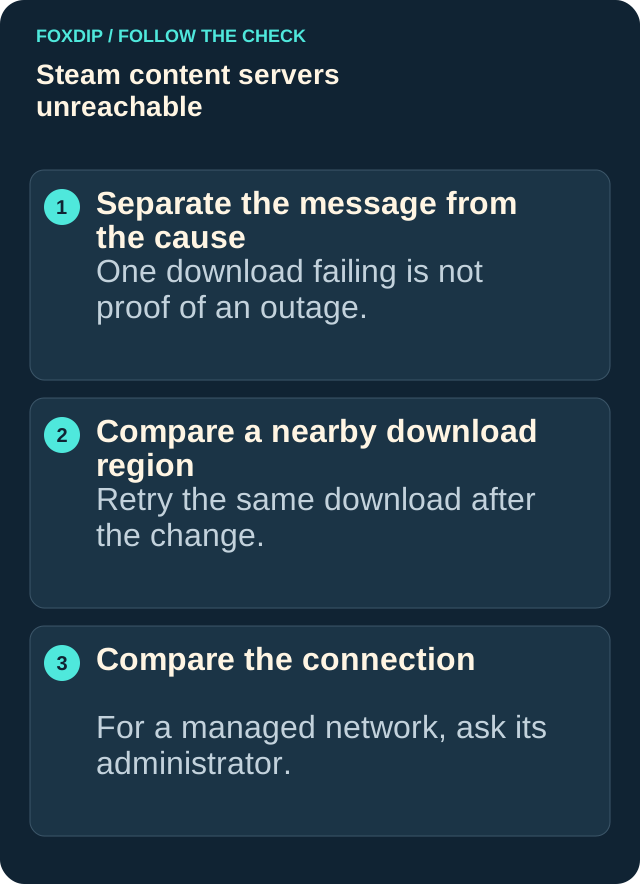
Illustration: follow the branch that matches what you see; menu paths are explained in the steps below.
Image: Foxdip · original explanatory illustration
Open full-size image : Separate the message from the cause: One download failing is not proof of an outage.. Compare a nearby download region: Retry the same download after the change.. Compare the connection: For a managed network, ask its administrator. (opens in a new tab)Compare a wired connection and restart network equipment
Steam warns that wireless and powerline connections can fail intermittently because of interference. If practical, try an Ethernet connection to your router and retry the same download. This comparison helps you decide whether the connection method is involved; it doesn't guarantee a particular download speed.
Steam also recommends restarting the modem and router. Do that when it won't interrupt a stream, call, or someone else's work, then allow the internet connection to return before reopening Steam. Follow the equipment manufacturer's restart instructions.
Test an available wired connection
If you normally use Wi-Fi or powerline and can connect by Ethernet, do so and retry the download. Keep the game and download region the same for the comparison.
Look for: You can see whether the failure still occurs on the wired connection.
If wired works, investigate the original connection. If it still fails, restart your network equipment and retry once.
Check network restrictions without weakening security
Steam documents VPNs, packet filtering, and some background network tools as possible sources of interference. If you use one, review its connection rules and its provider's guidance. Keep antivirus and firewall protection enabled; ask the software provider or a technical specialist to check Steam-specific rules if you need help.
On a university, workplace, or other managed network, ask the administrator whether Steam traffic is allowed. Steam says required ports can be blocked on these networks and can't simply be remapped to ordinary web traffic. Give the administrator the official Required Ports for Steam article rather than making broad router changes yourself.
If the issue happens only at particular hours, record that pattern. Steam's network guide recommends testing at another time and contacting the ISP when traffic shaping may be involved. A pattern is evidence to share, not proof of the cause.
Escalate with the results you can reproduce
If the error remains, contact Steam Support with its exact wording, affected titles, attempted regions, connection method, and the results after restarting network equipment. Mention any network administrator or ISP findings. If another connection you already have permission to use works, include that comparison too.
These details help support narrow the failure without a destructive reinstall. Stop repeating unsuccessful checks once you've recorded the result; a different support-directed test will be more useful than another identical retry.
Sources & references
Based on the official support references below. Choose the steps that match your message, operating system and current app controls.
- Steam Support — Troubleshooting Network Connectivity ↗Checked 2026-10-23
- Steam Support — No Steam content servers are currently configured to deliver content for this game ↗Checked 2026-10-23
- Steam Support — Slow Downloads and Connection to Content Servers ↗Checked 2026-10-23
- Steam Support — Using a Router with Steam ↗Checked 2026-10-23
- Steam Support — Programs Which May Interfere with Steam ↗Checked 2026-10-23
- Steam Support — Required Ports for Steam ↗Checked 2026-10-23
Spotted something out of date? Let Alex know.
How we put our guides together ↗