
A Steam download at 0 B/s isn't always broken. It might be waiting behind another download, paused because you're playing, or busy setting up files on your drive. Check those first, then try the fixes below one by one.
- Open your Downloads page. Make sure the game isn't waiting behind another download or paused.
- Playing a game right now? In Settings > Downloads, allow downloads while you play.
- Give it a minute. Steam sometimes shows 0 while it's preparing or checking files on your drive.
- Go to Settings > Downloads > Clear Download Cache. You'll need to sign in again after.
- In the same menu, change the Download Region to one close to you.
- Remove any speed limit you set, then restart Steam (and your router if it's still stuck).
- Platform
- Windows PC · macOS
- App / launcher
- Steam
- Scope
- Match the controls in your current desktop client.
In this guide
Make sure the download is meant to be running
Open Steam's Download Manager and read the affected game's status. Steam can queue updates, schedule them for later, and let you reorder them. A queued update needs a different response from a download that tries to start and immediately fails.
If the client is already showing progress on another task for that game, let that task finish. Don't use the network rate alone to decide whether Steam has stopped. Note any complete error message before changing settings; its wording gives you a better starting point than the speed counter.
Open the download queue
In Steam, open View > Downloads. Find the affected title and check whether it is queued, scheduled, or showing an error. Use the Download Manager to request the update now rather than leaving it scheduled.
Look for: The selected update should become the download Steam is attempting to run.
If it starts, leave the queue alone. If the active download still makes no progress, check the settings below.
Check the update schedule
Open Steam > Settings > Downloads and review any automatic update time window. Steam also lets you override a scheduled update from the Download Manager. Request this update immediately if you want it now.
Look for: You can distinguish an update waiting for its schedule from a download that cannot transfer data.
| What you see | First action |
|---|---|
| Queued or scheduled update | Request the update in Downloads and check its schedule. |
| Zero network rate but installation progress changes | Let the current update task progress; zero transfer alone is not a freeze. |
| Downloads pause only while another game runs | Review that game's background-download setting. |
| An active transfer stays idle or shows an error | Keep the exact message, then check limits and the relevant failure branch. |
Does it stop only while another game is running?
Open the running game's Properties, then Updates, and review its background-download setting. Steam can pause other updates while you play. Compare what happens after the game closes, or after you deliberately change that setting.
If the queue resumes when the game state or setting changes, a network reset isn't your first move. Allowing a large download during a stream can compete for bandwidth, so keep the setting that fits what you're doing.
Review the speed limit before resetting anything
Steam has a download speed limit in its Downloads settings. Check whether you've left a restrictive limit enabled after a stream or another activity that needed bandwidth. Record the existing value before changing it so you can restore your preferred limit afterward.
Also compare like-for-like units. Steam can display download rates in bytes or bits per second, while internet plans generally use bits. There are eight bits in one byte. That explains some apparent speed differences, but it doesn't turn a sustained zero into a healthy transfer.
Check Limit Download Speed
Go to Steam > Settings > Downloads. Review Limit Download Speed and adjust an unintended cap. Return to Downloads and retry the affected title.
Look for: An accidental bandwidth cap should no longer restrict this attempt.
If the transfer remains at zero, restart before clearing the cache.
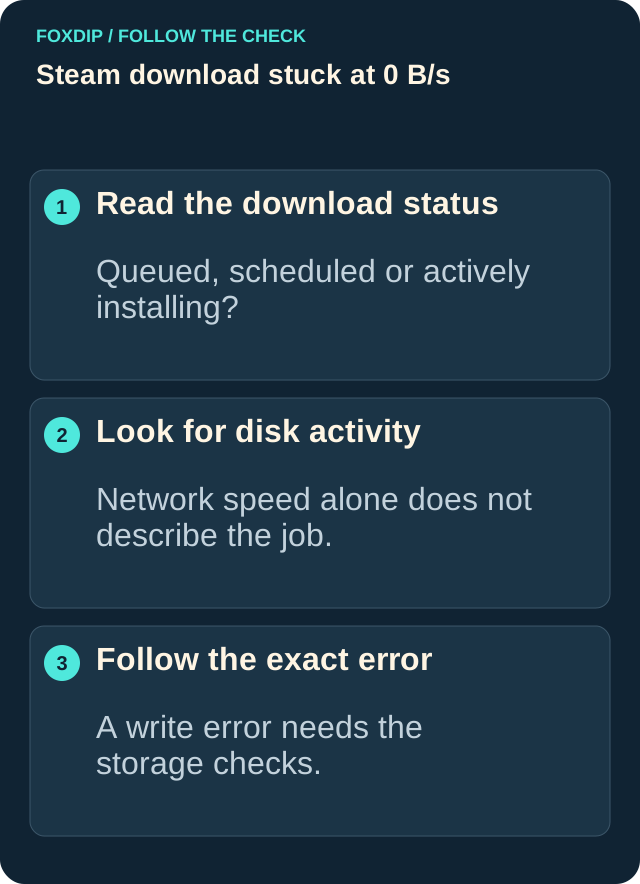
Illustration: follow the branch that matches what you see; menu paths are explained in the steps below.
Restart, then refresh the download cache
Save your work and restart the computer, then reopen Steam and retry the download. Steam recommends a restart for installation problems because it clears temporary system states and releases file locks.
If the download still won't move, clear Steam's download cache. This is a client setting, so you don't need to find or delete folders manually. Steam says the operation leaves installed games intact, but it signs you out. Make sure you can sign back in before you confirm it.
Clear the download cache
Open Steam > Settings > Downloads, select Clear Download Cache, and confirm. Sign back in when prompted, reopen the Download Manager, and retry the same game.
Look for: Steam rebuilds its locally cached download configuration and attempts the transfer again.
If there is still no progress, try another nearby download region.
Try a nearby download region and follow the right error
Open Steam > Settings > Downloads and review Download region. Select your own region or the closest one. If it was already correct, try a different nearby region and retry. Steam's official download guidance recommends nearby alternatives when the selected content server isn't delivering a good connection.
Stop here if the download resumes. If it fails with a disk write error, follow the storage guide. If it reports a content server connection problem, follow the connection guide. If there's still no specific error, contact Steam Support with the game's name, its download status, the region you tried, and whether other downloads are affected. That gives support something concrete to investigate without repeating a reset indefinitely.
If Steam names the content servers, follow that connection branch. Steam content servers unreachable ↗
A storage error needs a different check from an idle queue. Steam disk write error ↗
Sources & references
Based on the official support references below. Choose the steps that match your message, operating system and current app controls.
- Steam Support — Managing Steam Downloads & Updates ↗Checked 2026-10-29
- Steam Support — Setting Client Rates (Limit Download Speed) in Steam ↗Checked 2026-10-23
- Steam Support — Slow Downloads and Connection to Content Servers ↗Checked 2026-10-23
- Steam Support — Clear download cache ↗Checked 2026-10-23
- Steam Support — Update & Installation Issues ↗Checked 2026-10-23
Spotted something out of date? Let Alex know.
How we put our guides together ↗