
If Steam stops an installation or update with a disk write error, start with the library that holds that game. Steam's installation guide explains that the reason for a failed update appears in parentheses at the end of the message. Keep that full message: a storage error deserves a different path from a slow download or an unreachable content server. The steps below use Steam's repair tools before you investigate the drive itself.
- Platform
- Windows PC · macOS
- App / launcher
- Steam
- Scope
- Match the controls in your current desktop client.
In this guide
Identify the affected game and storage location
Open Downloads, note the game that failed, and copy the complete error text. Then open Steam > Settings > Storage and find the library containing it. If you have several library drives, make sure you're working on the correct one.
Check the storage information there before attempting another installation. If you need room, Steam supports moving installed games between configured libraries. Keep game saves and custom files in mind before moving or reinstalling anything: Steam's backup guidance says save locations vary by developer, and a game-content backup isn't a universal backup of progress. Get the correct save location from the game's developer if you're unsure.
Restart and retry once
Save your work, restart the computer, reopen Steam, and retry the affected installation or update.
Look for: A temporary file lock or stale system state may clear after the restart.
If the same disk write message returns, repair the affected library rather than repeatedly restarting.
Run Steam's library folder repair
A Steam library must be writable for updates to install. Steam documents library repair as a way to refresh library permissions that have stopped working. This is a focused first repair for the location where the download is failing.
Choose the library containing the affected title. Repairing a different library won't tell you whether this game's install location can be updated. Let Steam finish the operation, then retry the original download so the result is comparable.
Repair the folder
Open Steam > Settings > Storage. Select the affected library, open its three-dot menu, and choose Repair Folder. Follow any prompt Steam presents, allow the repair to complete, and retry the update.
Look for: Steam attempts to refresh the library's write permissions.
If the update completes, you're done. If the game is already installed and still fails, verify its files next.
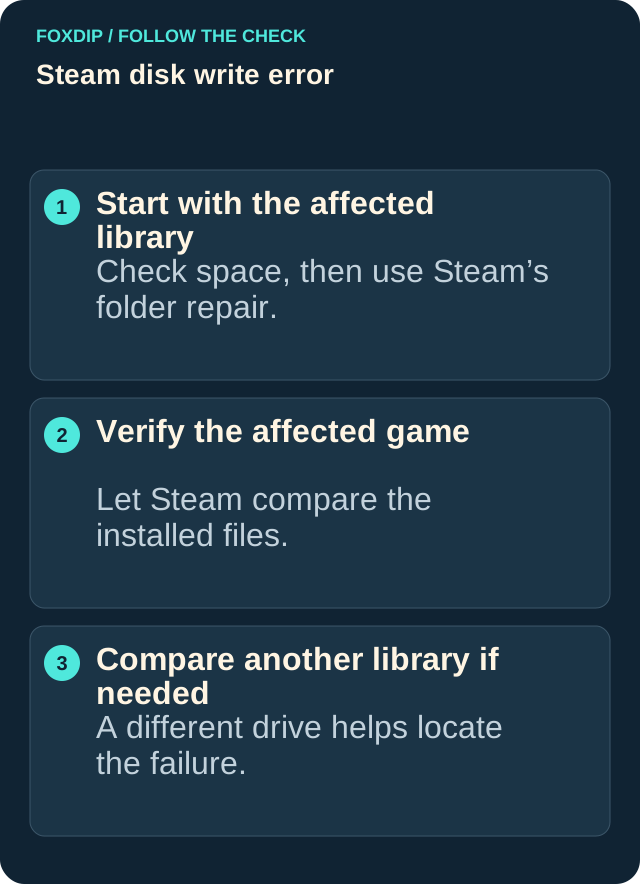
Illustration: follow the branch that matches what you see; menu paths are explained in the steps below.
Image: Foxdip · original explanatory illustration
Open full-size image : Start with the affected library: Check space, then use Steam’s folder repair.. Verify the affected game: Let Steam compare the installed files.. Compare another library if needed: A different drive helps locate the failure. (opens in a new tab)Verify the installed game
Verification checks the installed files against what Steam expects and can repair damaged game content. Use it for an existing installation that can't finish updating. For a first installation that hasn't created a usable game entry yet, continue to the alternate-drive check instead.
Don't verify multiple games simultaneously or run another intensive maintenance task at the same time. Wait for the check and any follow-up download to finish before you judge the result.
Check this game's files
In Library, right-click the affected game and open Properties > Installed Files > Verify integrity of game files. Let Steam complete the check, then retry the update.
Look for: Steam checks the installation and repairs game files when needed.
If the write error returns, test whether the issue follows the drive.
Test a different library drive, if one is available
Steam's installation guidance recommends an alternate drive as a diagnostic. In Settings > Storage, use the plus control to add a Steam library on another available drive. Try installing the affected game there if you have enough space and are willing to download it.
If the other location works, that narrows your next investigation to the original location; it doesn't by itself prove hardware failure. If both locations fail, tell support that too. Don't erase or format a drive to make this comparison.
If the error persists, investigate the drive with a backup
Back up important files before storage maintenance. Steam lists Windows drive Error checking and macOS Disk Utility's First Aid as further checks, and recommends a technical specialist for advanced drive diagnosis. On Windows, the documented route is This PC > right-click the affected drive > Properties > Tools > Error checking. On macOS, select the drive in Disk Utility and choose First Aid.
If you're unsure about a repair prompt, stop and get help rather than approving changes you don't understand. Contact Steam Support with the full error, affected library location, repair and verification results, and the alternate-drive result if you could perform it. If the operating system reports storage problems too, bring those details to your computer or drive support provider.
Sources & references
Based on the official support references below. Choose the steps that match your message, operating system and current app controls.
- Steam Support — Update & Installation Issues ↗Checked 2026-10-23
- Steam Support — Verify Integrity of Game Files ↗Checked 2026-10-23
- Steam Support — Managing Steam Downloads & Updates ↗Checked 2026-10-23
- Steam Support — Using the Steam Backup Feature ↗Checked 2026-10-23
- Steam Support — Steam Client Troubleshooting ↗Checked 2026-10-23
Spotted something out of date? Let Alex know.
How we put our guides together ↗