
Start with one key that misfires. Write down its current settings, raise the actuation point a little, and test. Only touch Rapid Trigger after that, and change one thing at a time.
- Find the key that misfires and when it happens.
- Open the Keychron Launcher and write down that key's current values.
- Raise the actuation point a little on that key only.
- Type and play for a few minutes.
- Still too touchy? Then try a less sensitive Rapid Trigger setting.
- Keep the smallest change that fixes it. Reset if things get worse.
A repeatable comparison that shows whether first-press depth or reset travel needs attention.
In this guide
Before you start
- Original Keychron Q1 HE; this guide does not establish settings for Q1 HE 8K or other HE generations.
- Screens show Launcher's demo keyboard; available controls depend on your model.
- A supported browser, a direct USB data connection as a diagnostic baseline, and a blank text editor.
- A written record or screenshot of your current profile and selected-key values.
Find the moment the wrong input appears
If resting your fingers produces letters, start with the first press. If a held movement key releases or fires again during a small finger movement, investigate reset behavior next. Write down which of those you can reproduce. “Too sensitive” can describe both, but changing both controls together makes the result hard to interpret.
Open a blank document and choose one affected letter. Use the same seat, finger position and typing rhythm for each comparison. Avoid a game, live chat or a document you care about while testing. Your aim is a small, repeatable example you can check again after one adjustment.
Save a baseline before touching the slider
Connect the original Q1 HE and select its current profile in Launcher. Use a direct USB data cable for this comparison. Check your model's connection instructions if you normally configure it wirelessly; a working wireless keyboard connection doesn't settle which configuration transports that model supports.
Photograph or write down the selected key's starting values, including the current profile, first-press distance and Rapid Trigger state. Use Clear to remove the previous key selection, choose one affected letter and check that only that key is highlighted. That matters when a control can apply to several selected keys.
Change initial actuation on one key
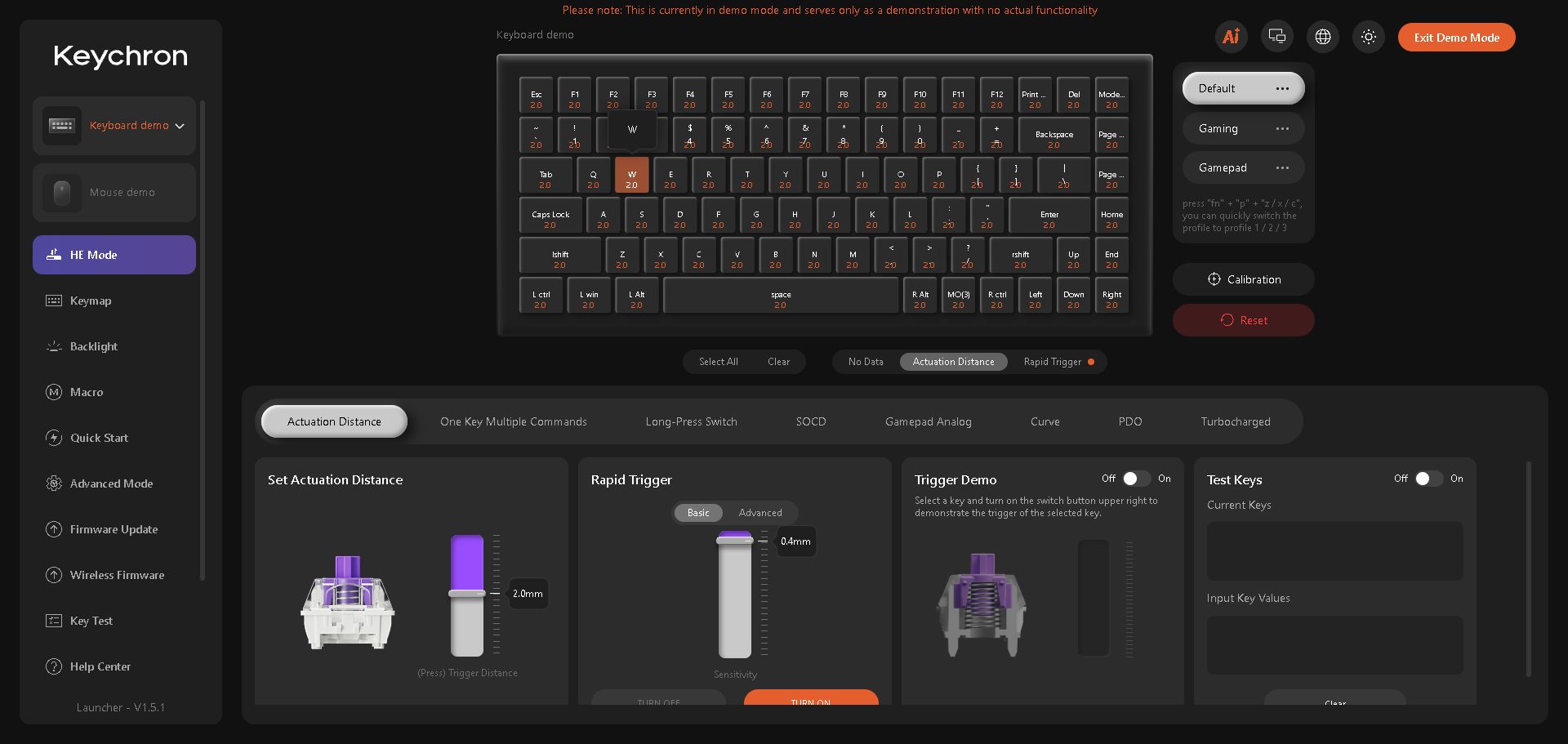
Open HE Mode, select the affected key and find Actuation Distance. This controls the first input; Rapid Trigger controls reset and retrigger travel. Leave Rapid Trigger unchanged for this comparison. Keychron says the distance saves automatically, so note the original value before moving it.
Increase that letter's initial distance by one small available step. Return to the blank document and repeat your original action. Record what changed: fewer accidental presses, no difference, or an uncomfortable extra reach. Restore the starting value and repeat once more. That return comparison helps you avoid keeping a change that only seemed better during one attempt.
 1234
Select one key before changing its initial actuation. Keep the Rapid Trigger setting separate.
- Open HE Mode
- Select only the affected key
- Actuation Distance
- Rapid Trigger is a separate control
Check Rapid Trigger in a separate pass
If the problem happens while holding or releasing the key, return initial actuation to your recorded baseline before inspecting Rapid Trigger. Keep your comparison on the same key and change one available reset or retrigger control at a time. Test the exact small finger motion that caused trouble.
Basic Rapid Trigger uses the same travel value for press and release. Advanced mode lets you set those values separately. Note which mode is active before moving a slider; a number copied from another setup doesn't tell you which behaviour it changes. Keep the first-press baseline unchanged during this comparison.
Use a deeper first press only if that comparison helps the first-press problem. Keep a Rapid Trigger adjustment only if it helps the hold/release problem. You don't need to spread either setting across the keyboard. Try your chosen value in normal typing before considering additional keys.
Restore or keep the smallest useful change
If neither comparison changes the symptom, restore the recorded settings and stop widening the experiment. Note whether the same key fails in ordinary typing, in one application, or only while another feature is enabled. Those observations are more useful for the next diagnosis than a keyboard-wide reset.
Trigger Demo is a simulation, not proof that your keyboard accepted a setting. Test Keys shows actuated-key feedback when you're working with the device. Return to your blank document for the physical press-and-release comparison; the Launcher demo screenshot below this guide cannot perform that test for you.
Sources & references
Based on Keychron’s Q1 HE and HE-mode instructions. The screenshots show Launcher’s demo keyboard, version 1.5.1; controls available on a connected device depend on its model and firmware.
- Keychron — Q1 HE User Guide ↗Checked 2026-10-18
- Keychron — How to use HE mode on Keychron Launcher ↗Checked 2026-10-29
- Keychron Launcher — demo interface ↗Checked 2026-10-18
Spotted something out of date? Let Alex know.
How we put our guides together ↗