
A recorded macro needs a matching M-slot assignment on the layer you're using. Check the slot and binding separately with a short text marker.
A checked macro slot and key assignment, plus a reversible test that separates keyboard output from an app shortcut.
In this guide
Before you start
- Original Keychron Q1 HE and an unused macro slot or an export of the slot you plan to change.
- Screens show Launcher's demo keyboard; available controls depend on your model.
- A supported browser, direct USB as the diagnostic baseline and a blank text editor.
- The current physical key, active layer and original binding recorded before editing.
Check the slot before recording again
If you recorded a macro but its key does nothing, write down two things: the slot containing the recording and the function assigned to the physical key. A recording in M0 won't help a key assigned to another slot. Start with that connection before deleting a sequence you've already built.
Use the original Q1 HE's connected-device view when applying changes. The illustrations show Launcher's demo, which lets you inspect the controls without proving what your keyboard sends. Keep your current setup open long enough to record the device, profile and layer you intend to use.
Keep the existing shortcut available
Find a free macro slot for the comparison. If you need an occupied slot, export its contents first and keep the original file. Also record the test key's existing binding. Choose a key you can temporarily spare; leave your only Fn key, Escape and normal typing keys available.
Open a blank text document and put the caret inside it. Use a short marker such as “gg” for the test, without Enter or application commands. You'll be able to see unexpected letters immediately, and pressing the test key won't send a chat message or start a more complicated action. Leave a little space between trial presses and keep your hands off other modifiers so the result stays easy to read.
Submit a small recording in the chosen slot
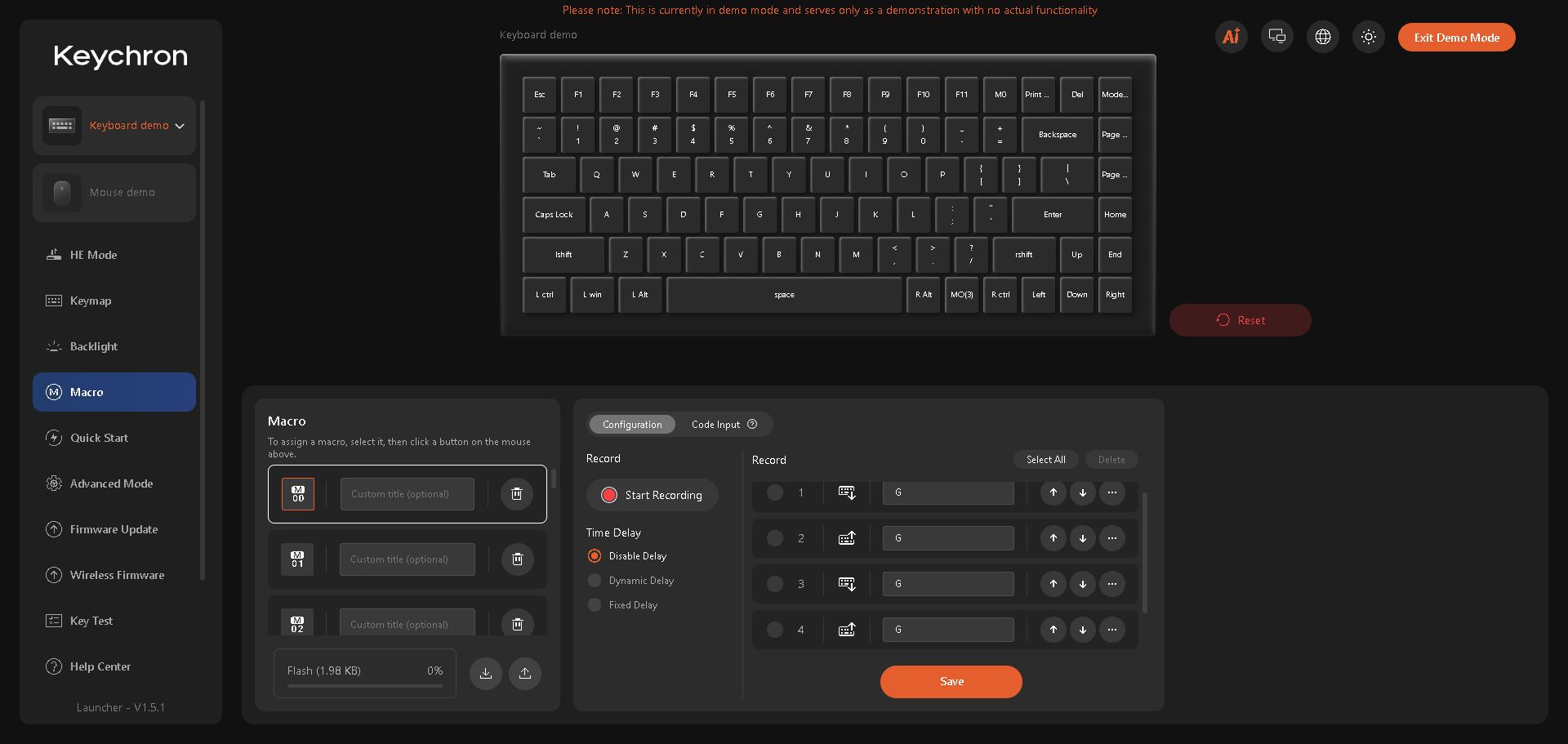
Open Macro and select your free slot. Click Start Recording, tap the marker keys, then click Stop Recording. Read the events for unwanted extra keys and click Save. The first slot is shown as M00 in this editor and M0 in the Keymap palette.
A press and a release are different events; a tap includes both. If a modifier appears in a longer sequence, check that it also has a release. QMK's documentation explains that distinction. You don't need to edit firmware or paste source-code macros into Launcher to inspect the recording.
 1234
Two G-key taps create four events: press, release, press, release. Check the slot and events before clicking Save.
- Open Macro
- First slot: M00
- Recorded key events
- Save the sequence
Assign that same number in Keymap
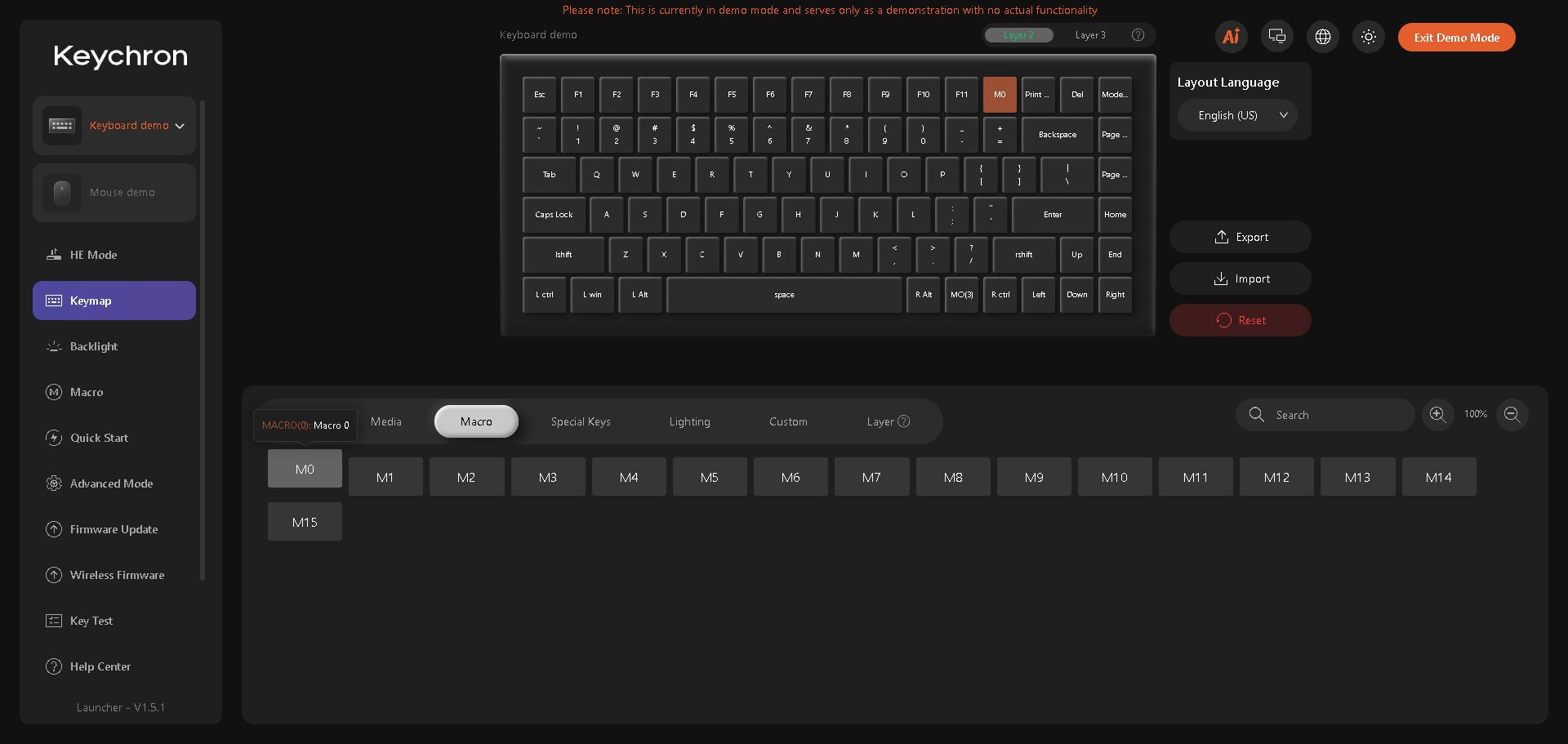
Open Keymap, select the intended layer and test key, then choose Macro in the palette and click the same M-slot number you edited. If the key opens a quick-action menu, choose the slot directly from the lower palette. Read the updated key label: the F12 position reads M0 in the demo below.
Focus the blank document and press once. If nothing appears, recheck the slot and layer. If another sequence appears, inspect the number the key calls. Change only the mismatch, then repeat.
 1234
The first macro slot is assigned to the demo’s F12 position. The slot number in the palette and on the key should match.
- Check the layer first
- Key now calls M0
- Macro palette
- Assign the same slot
Move to the real shortcut only after the marker works
Once the short marker behaves as intended, build the real shortcut in small additions and test it in the target application. Keep host keyboard layout and application shortcuts in mind if the letters or command differ. Restore the test key and preserved slot when the comparison is finished.
If the marker still fails, keep the original settings and a screenshot of the slot and key assignment for the next diagnosis.
Sources & references
Based on Keychron’s macro instructions and QMK’s explanation of press/release events. Captures show a two-G-key recording and M0 assignment inside Launcher’s official demo, version 1.5.1. The demo does not run a physical keyboard.
- Keychron — Create a Macro on Launcher ↗Checked 2026-10-18
- Keychron — Original Q1 HE QMK Wireless Custom Keyboard ↗Checked 2026-10-18
- QMK Firmware — Macros ↗Checked 2026-10-18
- Keychron Launcher — demo interface ↗Checked 2026-10-18
Spotted something out of date? Let Alex know.
How we put our guides together ↗