
For USB, use the K688’s powered onboard controls; for an XLR-only path, use your interface or mixer’s gain, mute and monitoring.
Know where gain, mute and headphone monitoring belong before changing the wrong control on a K688 setup.
In this guide
Before you start
- FIFINE K688 and the actual USB or XLR capture route.
- For XLR, an interface/mixer and its own control instructions.
Identify the connection carrying your voice
Follow the cable that actually feeds the recording app. USB connects the K688 to the computer as a microphone device. XLR connects its analog output to an interface, mixer or recorder, and the computer then receives that device’s input. If both cables are present, inspect the selected recording input before judging any control.
FIFINE documents the onboard gain knob and mute as USB-connection features. Its current product FAQ has ambiguous wording about connecting USB alongside XLR. Don’t take a lit button as proof that the analog path is muted; verify the receiving XLR channel before relying on it during a live show.
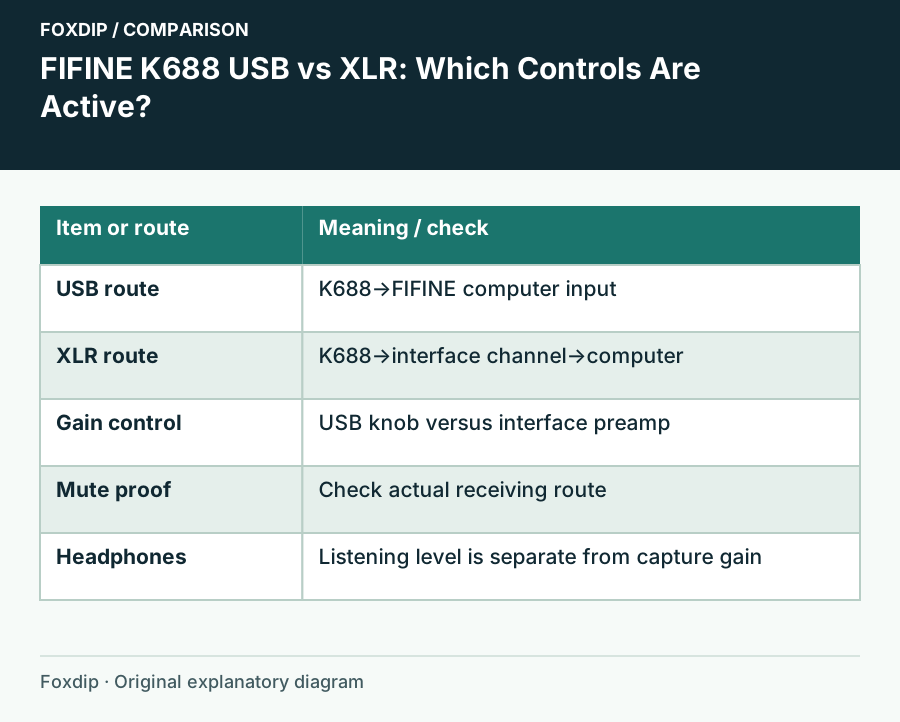
Original Foxdip schematic. Follow the labelled checks alongside the guide.
Put each control beside its signal path
A headphone level changes what you hear, while capture gain changes the signal being recorded. Start with modest listening volume and the mic in a comfortable speaking position. Keep those adjustments separate so an increase in headphone loudness doesn’t convince you that a quiet recording was fixed.
| Task | USB microphone route | XLR-only interface route |
|---|---|---|
| Capture gain | K688 mic gain plus relevant app/system input level | Interface or mixer preamp/input control |
| Mute the outgoing voice | K688 USB mute; verify in the recording app | Interface/mixer or software control for the selected XLR input |
| Listen to the mic | K688 headphone monitoring when powered for USB use | Interface/mixer headphone and direct-monitor controls |
| Choose app input | FIFINE microphone device | Interface input carrying the XLR mic |
Check USB without the interface
For the first USB test, select the FIFINE microphone input explicitly in the system and recording app. Speak normally while watching the meter, adjust the K688 gain and make a short file. Use the headphone control for comfortable monitoring, then judge the recording by playing it back.
If the computer sees the mic and its meter responds but you hear nothing, inspect the selected playback output. FIFINE’s troubleshooting guidance distinguishes input recognition from choosing the correct listening device. The microphone can be recording correctly while the computer sends playback to a different headset.
Check XLR at the interface channel
Connect the XLR cable to an appropriate mic input on your interface or mixer, and select that input in the recording app. The K688’s USB gain knob is not the control to chase on an XLR-only setup. Start with the interface’s input gain low and raise it while speaking, following that device’s own meter guidance.
Select the actual interface input
Choose the channel carrying the XLR cable rather than a leftover USB mic source.
Look for: The expected channel meter responds to your voice.
Test the interface mute
Use the intended channel mute or software mute while speaking a harmless phrase.
Look for: The receiving recording meter or recorded file confirms silence.
Check monitoring independently
Use the interface headphone output and monitoring controls at a comfortable level.
Look for: You can hear the intended route without assuming it matches the audience mix.
If both connections stay plugged in, prove the mute
Name the USB and interface sources clearly and mute the unused capture in OBS. A doubled voice can come from recording both outputs of the same mic. Record one phrase through each source separately before deciding which route belongs on the audience track.
Before a private conversation, test the exact mute control while watching the actual receiving route, then play back a short file. If the XLR channel still receives speech, use the interface or app control that does stop it. Keep the final cable, input and mute mapping in your setup note so you don’t depend on an illuminated button during the next broadcast.
Sources & references
Based on the official documentation linked beside the relevant sections. Follow the checks on your own setup; no hardware measurements or account tests are claimed.
- FIFINE — AmpliTank K688 USB/XLR ↗Checked 2026-10-27
- FIFINE — Install & Set Up K688 ↗Checked 2026-10-27
- FIFINE — K688 Troubleshooting ↗Checked 2026-10-27
Spotted something out of date? Let Alex know.
How we put our guides together ↗