
If a setting works only while iCUE is running, check whether it is an app-controlled setting or saved in your device’s onboard memory. Saving a software profile does not put every feature into the mouse or keyboard.
In this guide
Choose the device that is actually changing
Open the affected peripheral in iCUE and record the exact model. The options for a DARKSTAR mouse, a keyboard and a headset are not interchangeable. Some devices store more profiles or functions than others; do not infer the available memory from another product’s screenshot.
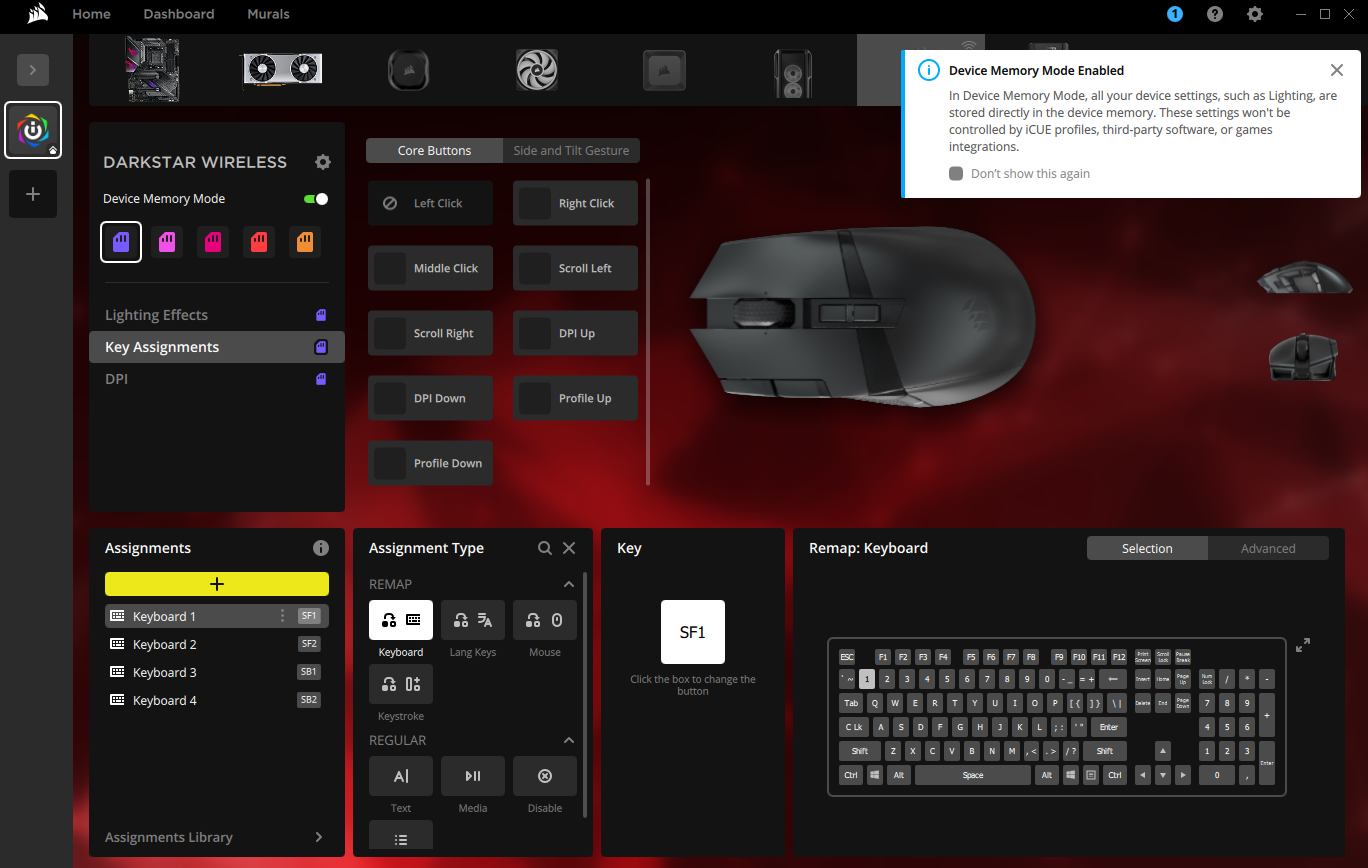
This guide follows Corsair’s Device Memory Mode instructions for iCUE 5.14 or newer. Its official screenshots use DARKSTAR WIRELESS as the example. For an older iCUE installation, use the separate version section in the linked Corsair guide.
 123
Corsair’s DARKSTAR WIRELESS example shows Device Memory Mode and the device’s available assignments. Your model may expose fewer controls.
- Select the exact connected device.
- Check the Device Memory Mode switch.
- Use the functions offered in this mode.
Keep the current software profile before editing a slot
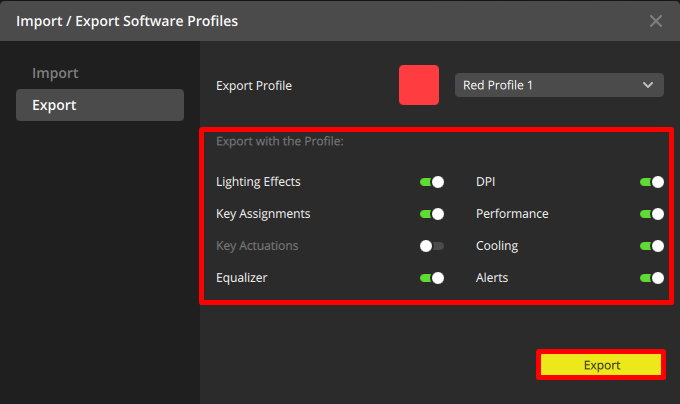
Make a backup of your useful software profile before changing onboard slots. Corsair’s export controls let you select a profile and the parts included in a .cueprofile file. Give the file a name that identifies the device and date, then save it somewhere separate from the app’s working data.
The backup records the exported software-profile components. It does not prove that the same effects, macros or integrations will run from the device’s memory. Keep a short note of which setting you are trying to make portable.
 123
Corsair’s export example lets you choose which parts of a profile to include in the backup.
- Choose the intended profile.
- Review the components included.
- Export to a separate file.
Save one supported change to the intended slot
Enable Device Memory Mode for the selected device, choose a slot and configure one clearly recognizable supported setting. Keep the first check simple: a basic hardware lighting colour or one harmless supported assignment is easier to follow than a long macro.
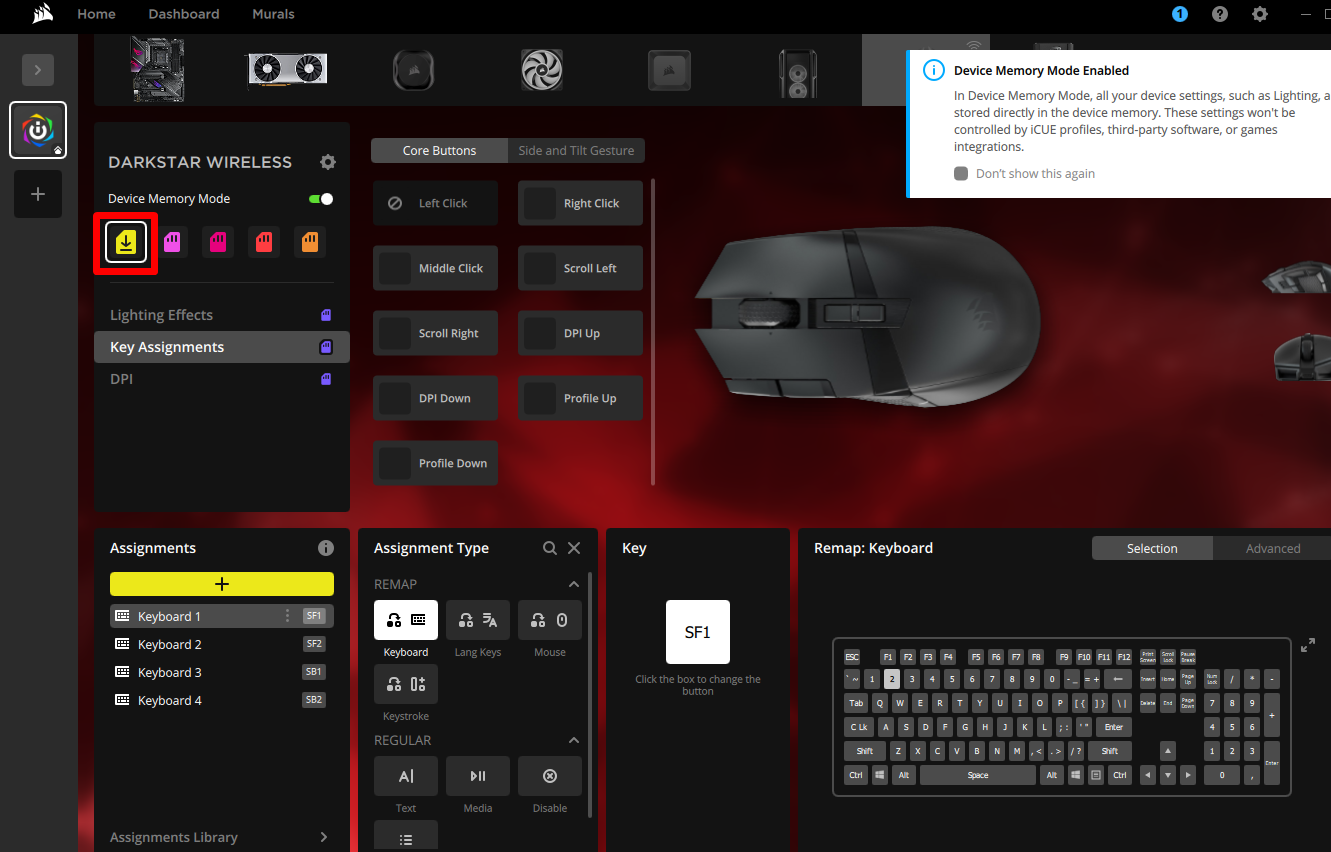
Finish by saving the slot. Corsair’s documentation shows a save control on the selected onboard slot. If all slots are occupied, do not overwrite one blindly: identify what it contains, preserve what you can and choose the slot deliberately.
Edit in the device-memory context
For iCUE 5.14+, select the exact device, enable Device Memory Mode, configure the supported setting and save the intended slot.
Look for: The change is saved to the selected device-memory slot, rather than existing only in an app-controlled profile.
If the needed function is unavailable in this mode, check the device-specific feature support instead of repeatedly recreating the same software effect.
 1
The save control in Corsair’s device-memory example. Save the intended slot before testing with iCUE closed.
- Save the selected device-memory slot.
Close iCUE and repeat the same harmless action
Exit iCUE, then check that one setting with the device in its standalone state. Keep the connection and other conditions the same. If it behaves differently, note whether it reverted, switched slots or lost only an app-dependent feature.
When you reopen iCUE, its software profile can control the device again. A difference between those two states is useful information; it does not automatically mean the hardware forgot its memory. Check the selected slot and the kind of function that changed.
| What you observe | What to check next |
|---|---|
| The simple saved setting remains | Onboard persistence works for that setting. Test other supported changes separately. |
| Everything returns to an old appearance | Confirm the slot you saved and the active standalone slot. |
| Basic settings remain, one complex effect disappears | Check whether that effect requires iCUE or an integration. |
| Only one game changes the behaviour | Review the software profile’s linked-app selection. |
Keep a separate route for an import crash
This guide is about the boundary between software control and onboard storage. If iCUE crashes immediately after you import an old file, that is a different symptom. Preserve the original export and follow the compatibility route rather than overwriting hardware slots to repair the app.
Separate profile-format compatibility from device-memory persistence. Check an old-profile import crash ↗
Sources & references
The steps follow the linked platform documentation. Practice downloads and planning examples are original Foxdip resources.
- Corsair — Hardware profiles / Device Memory Mode ↗Checked 2026-10-27
- Corsair — Import and export iCUE profiles ↗Checked 2026-10-27
- Corsair — Set up and manage profiles ↗Checked 2026-10-27
Spotted something out of date? Let Alex know.
How we put our guides together ↗