
Identify the exact G502 X model, establish a working USB data or LIGHTSPEED receiver connection, then compare OS detection with G HUB.
Check wired G502 X, LIGHTSPEED or PLUS connections before resetting software or deleting profiles.
In this guide
Before you start
- The exact G502 X model and supplied cable/receiver.
- A second working pointer if needed during reconnection.
Read the model before troubleshooting wireless
G502 X is a wired mouse. G502 X LIGHTSPEED and G502 X PLUS are wireless models, with PLUS adding the RGB presentation. Read the label and compare the supplied connection equipment. A charging cable, a receiver and the fixed cable on a wired mouse give you different starting points.
Use the supported cable or LIGHTSPEED route for your exact model. Don’t treat every small Logitech receiver as interchangeable, and don’t assume instructions for a similarly named older G502 describe your X variant. The point is to establish a data connection before asking G HUB to configure the device.
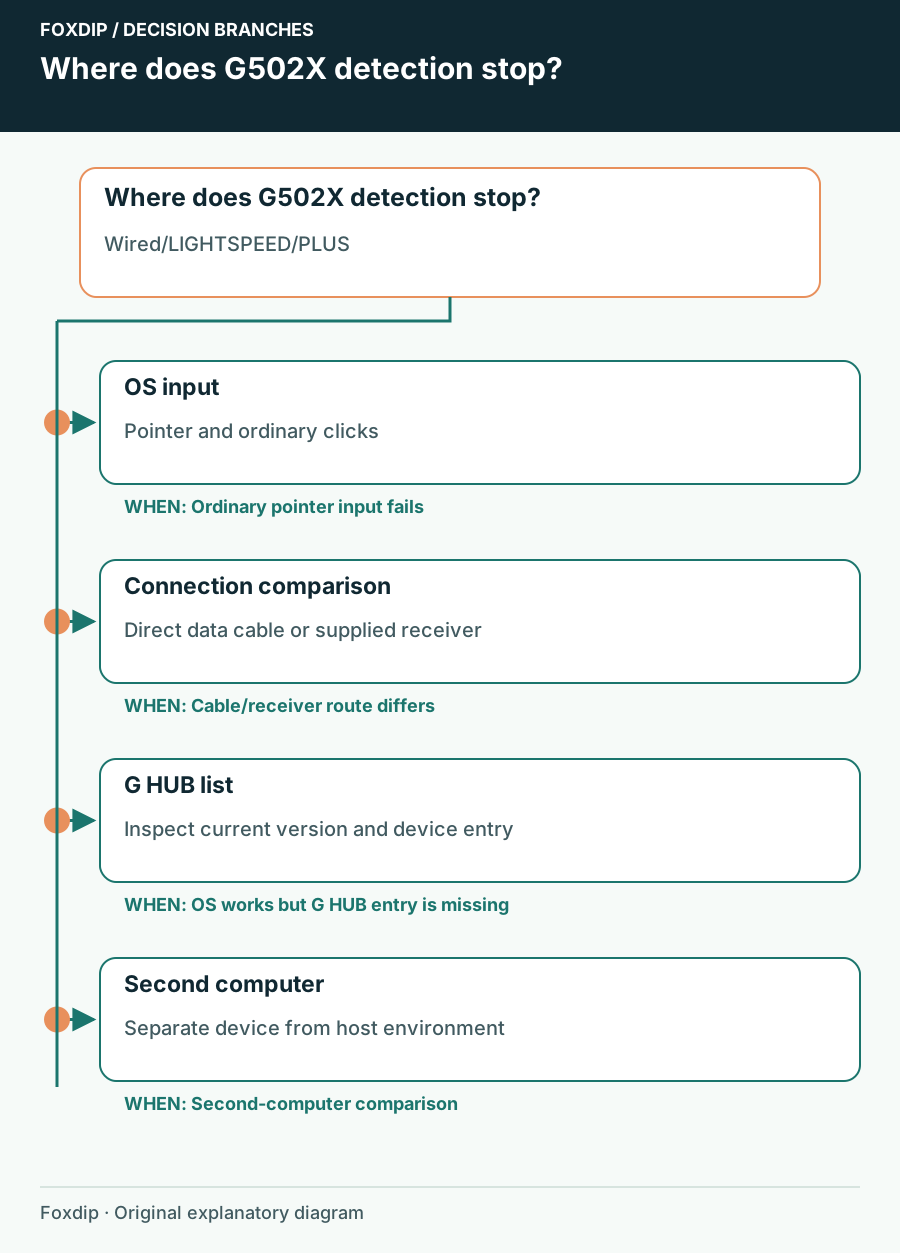
Original Foxdip schematic. Follow the labelled checks alongside the guide.
Check whether the computer receives normal input
Test pointer movement and ordinary clicks outside G HUB. If those fail, inspect power and the physical connection first. If they work, note that distinction: operating-system input and G HUB device configuration are separate layers, so one can succeed while the other fails.
For a wireless model, compare the supplied data cable connection with the receiver route when possible. Change only the connection, leaving G HUB and the test app the same. If one route works and the other does not, you have narrowed the problem without erasing any settings.
Use the simple connection checks first
Logitech’s detection guidance starts with software version, secure physical connections, reconnecting the device and trying another or direct USB port. Follow those reversible comparisons before its more disruptive driver or settings-reset procedures. A hub comparison is useful evidence; it does not prove every hub is unsuitable.
Inspect the connection
Secure the relevant cable or receiver and confirm a wireless mouse has power.
Look for: Normal pointer input should be possible.
Compare a direct port
Connect directly to the computer and try another known-working USB port.
Look for: You can tell whether the original port or hub path matters.
Reopen current G HUB
Check the installed G HUB version through its settings, complete an official update if needed and inspect the device list again.
Look for: You can compare software detection with the already-tested physical route.
Preserve your profiles while narrowing the failure
If the mouse works normally but is absent in G HUB, capture the model name, connection mode and whether G HUB shows an inactive entry. Avoid interpreting generic support-page notices for other Logitech products as instructions to replace G HUB with another app for this gaming mouse.
If you have another compatible computer available, compare detection there without overwriting your main setup. The result can distinguish one computer’s software environment from a device that never appears. Don’t begin by deleting G HUB’s settings database: that changes every configured device and removes a useful reference.
Escalate with the two-layer result
If neither normal input nor detection works through the intended connection on another machine, contact Logitech with the exact model and those results. If input works everywhere but only one G HUB installation misses it, report that narrower software symptom. Include the installed version and OS rather than simply writing “latest.”
Once the device appears, verify one simple assignment and inspect the correct profile before loading your full game setup. Return any temporary cable or port arrangement to the one you want to keep and test again. A successful direct-port test is a diagnosis until the normal desk route works too.
Sources & references
Based on the official documentation linked beside the relevant sections. Follow the checks on your own setup; no hardware measurements or account tests are claimed.
- Logitech G — G502 X Wired ↗Checked 2026-10-27
- Logitech G — G502 X LIGHTSPEED ↗Checked 2026-10-27
- Logitech G — G502 X PLUS ↗Checked 2026-10-27
- Logitech — Device does not appear in G HUB ↗Checked 2026-10-27
Spotted something out of date? Let Alex know.
How we put our guides together ↗