
Check On-Board Memory mode and the Persistent Profile setting, then confirm you edited the game profile that becomes active.
Separate a persistent profile, onboard mode and an assignment made in the wrong app profile.
In this guide
Before you start
- G502 HERO connected and visible in G HUB.
- The intended game and one safe test assignment.
Decide who should control the buttons
For automatic game-specific assignments, start with G HUB’s software profile workflow. Onboard memory stores settings in the mouse for use without the app. A fixed hardware profile and software that changes profiles by application are different modes; a working pointer does not tell you which controls the extra buttons.
Open the G502 HERO device settings and inspect On-Board Memory mode. Note the current mode before changing it. If you want G HUB to manage application profiles, test with onboard mode Off and G HUB running. If you intentionally want portable fixed settings, use an appropriate onboard profile instead.
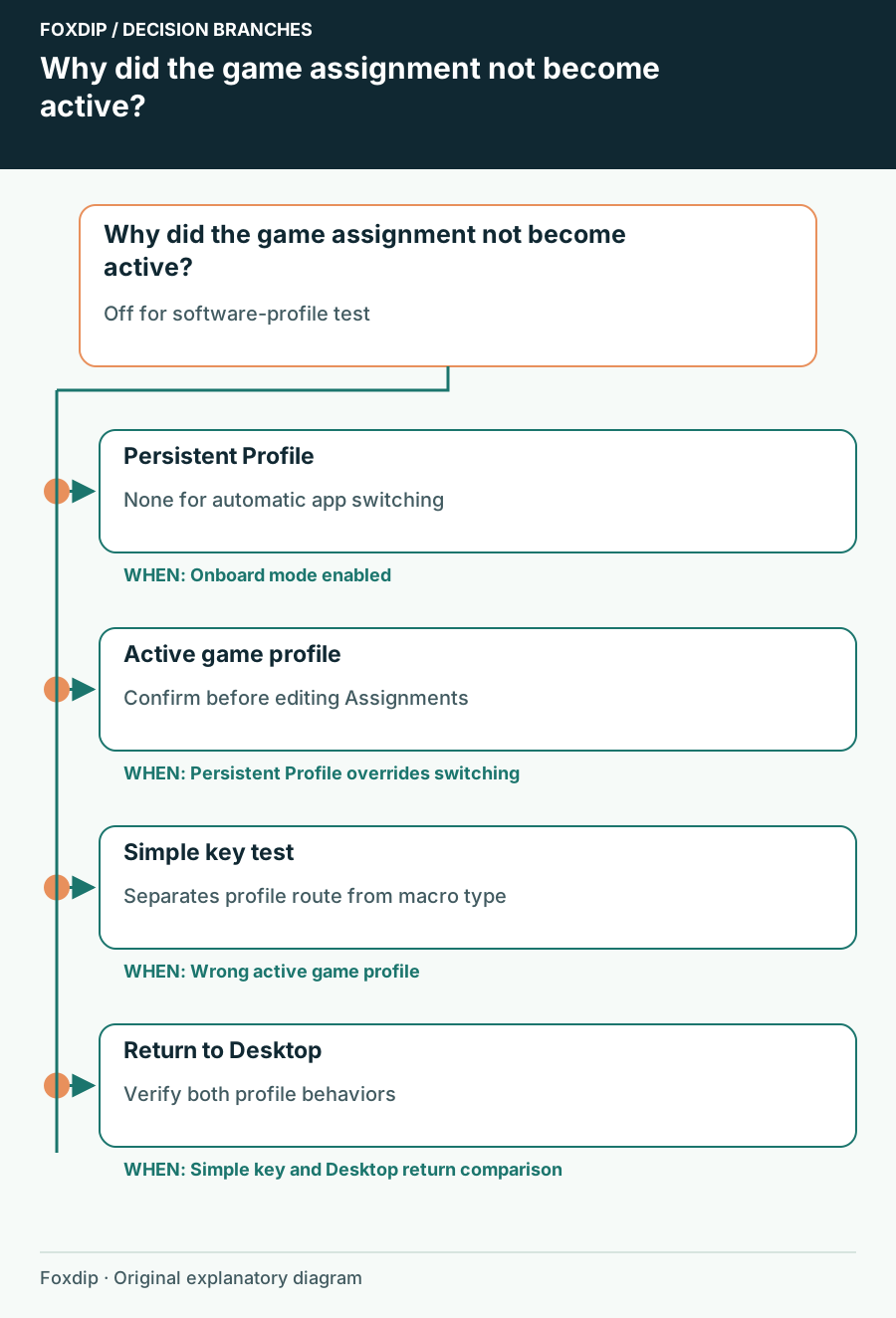
Original Foxdip schematic. Follow the labelled checks alongside the guide.
Check for a profile locked across all apps
In G HUB’s global settings, inspect Persistent Profile. Logitech documents that selecting a persistent profile keeps it across games and applications. If you want automatic switching, record the current selection and set it to None for the comparison.
A persistent Desktop profile can make every button seem to ignore the game even though G HUB is doing exactly what that lock asks. Do not rebuild every assignment before checking this setting. Restore the lock afterward if one universal profile is actually what you prefer.
Inspect the profile before making the assignment
Open the apps-and-games profile menu and select the intended game and profile. Then open G502 HERO’s Assignments view. Confirm the profile heading before editing. Two profiles belonging to the same game can contain different assignments, and a change made under Desktop does not automatically edit a game’s profile.
Use one harmless test assignment
Temporarily assign an unused side button to a simple key that you can verify without buying, deleting or sending anything.
Look for: The test has an observable result and a safe rollback.
Test the selected profile
Verify the assignment in a suitable text field or the game’s own keybinding screen.
Look for: You know the basic assignment itself works.
Launch the actual game
Compare the active profile indication after opening the game, and again when you return to the desktop.
Look for: You can tell profile switching from a game that rejects a particular command.
Separate a profile problem from an unsupported macro
If the expected profile becomes active but one macro does not run, compare a simple key assignment on the same button. Logitech lists macro types that do not work in onboard mode, including Toggle, Sequence and Repeat While Holding. A software macro is not guaranteed to behave identically when stored on the mouse.
If the simple key works and the macro fails, keep the profile route and inspect the macro’s type, trigger and the game’s accepted inputs. Follow the game’s rules for automation. Do not disable protections or run everything as administrator merely to make a speculative macro test work.
Keep the corrected profile small and recognizable
Restore the original test button or replace it with the intended supported assignment. Reopen the game and verify one representative action, then return to Desktop and check that its normal behavior comes back. This proves both sides of the switching workflow.
If G HUB never selects the expected game profile, record the game entry, selected profile, onboard state and persistent setting for support. If it switches correctly but the game ignores a key, report that narrower result. Keeping the two failures separate prevents another round of editing the wrong profile.
Sources & references
Based on the official documentation linked beside the relevant sections. Follow the checks on your own setup; no hardware measurements or account tests are claimed.
- Logitech — Enable On-Board Memory mode ↗Checked 2026-10-27
- Logitech — Lock a G HUB profile ↗Checked 2026-10-27
- Logitech G — G HUB Basics ↗Checked 2026-10-27
- Logitech — Onboard macro limitations ↗Checked 2026-10-27
Spotted something out of date? Let Alex know.
How we put our guides together ↗